
Merge PDFs
FreeCombine multiple PDF files into one. Reorder pages before merging.
Drag files here
Add 2+ files · switch tabs to preview each · processed together in order · PDF files · Max 100 MB
Processed in your browser, files never uploaded. Originals and edits stay on this device for 1 hour.
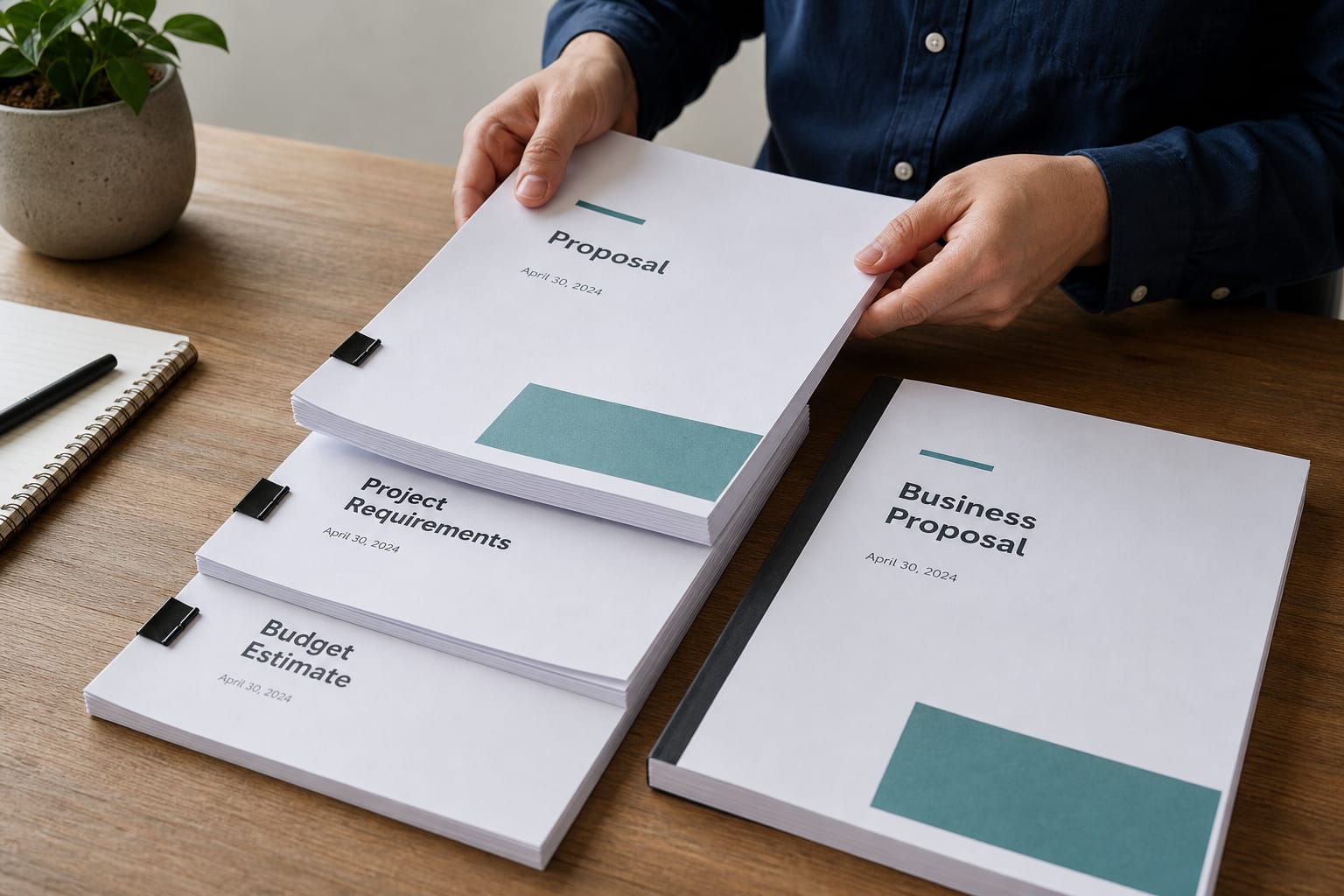
Showcase
What Merge PDFs is for
Combine multiple PDF files into one. Reorder pages before merging.
- Combine multiple PDF files into one. Reorder pages before merging.
- Ideal for everyday PDF chores without desktop software
- Browser processing keeps files on your device whenever the tool runs locally
How to use Merge PDFs
Combine multiple PDFs into one tidy document.
Add PDFs
Drop two or more PDF files
Order files
Files merge in the order you added them
Process
Creates a single PDF in your browser
Download
Preview then save the merged document
FAQs
Answers to the questions people ask most about privacy, quality, limits, and Merge PDFs.
Yes. Merge PDFs is free for everyday use. It runs in your browser with no account required for this tool.
For this tool, processing stays on your device in the browser. Files are not uploaded to Tools2Easy servers, so there is nothing for us to store or delete later. Close the tab when you are done if you want the in-memory preview cleared.
No install and no account for free tools. Open the page, add your file or text, process, then download or copy the result.
Most PDF and utility tools keep content fidelity unless you choose a compress or lossy convert option. Always preview the result before downloading when a preview is available.
Accepted types for Merge PDFs are listed in the upload area. Most browser tools work best under about 100 MB; very large files may fail or run slowly because your device does the work.
Yes, in modern mobile browsers (Chrome, Safari, Firefox, Edge). Large PDFs, images, or videos can be slower on phones because processing uses your device memory and CPU.
Browser tools depend on your device and file size — not a remote server queue. Close extra tabs, try a smaller file, or use a desktop browser if a large job stalls. If the tab crashes, the file was likely too heavy for available memory.
Yes. Results show in the workspace first. Download only when you are happy with the output. Use Compare on image/video results when you want to check against the original.
Use Unlock PDF when you know the password. Other PDF tools usually need an unlocked file. Lock PDF can add a password after you finish editing.
Because processing stays in your browser, files are not sent to Tools2Easy for this tool — a stronger privacy model than sites that upload then delete after an hour. You are still responsible for company policy; for highly regulated data, confirm your internal rules.
Many PDF tools accept more than one file (merge, compress, convert). The workspace shows how many files you can add. Order matters for merge — rearrange before you run the tool.
Files are combined in the order shown in the workspace. Reorder or re-add files before you process if the sequence matters.