
Markdown Preview
FreePaste Markdown or upload a .md file, preview HTML in a scrollable pane, then export.
.md, .markdown, or .txt · 129 B
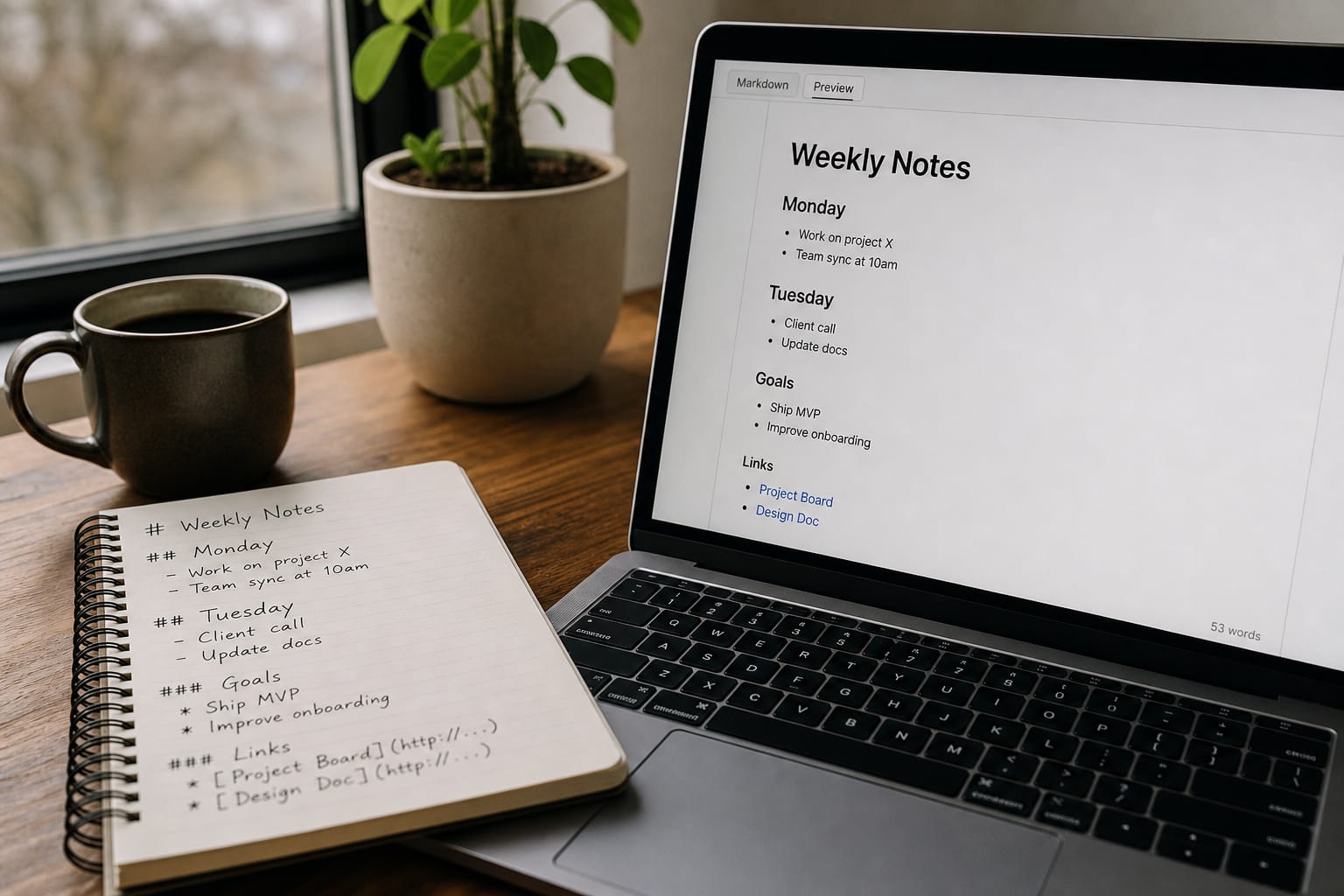
Showcase
What Markdown Preview is for
Paste Markdown or upload a .md file, preview HTML in a scrollable pane, then export.
- Paste Markdown or upload a .md file, preview HTML in a scrollable pane, then export.
- Writing helpers for drafts, rewrites, and everyday text tasks
- Browser processing keeps files on your device whenever the tool runs locally
How to use Markdown Preview
Paste Markdown or upload a .md file, then preview and export HTML.
Paste or upload
Type Markdown or choose a .md / .txt file
Scroll the preview
The right pane stays a fixed height and scrolls
Open preview
Open the formatted page in a new tab
Export HTML
Download a standalone .html file
FAQs
Answers to the questions people ask most about privacy, quality, limits, and Markdown Preview.
Yes. Markdown Preview is free for everyday use. It runs in your browser with no account required for this tool.
For this tool, processing stays on your device in the browser. Files are not uploaded to Tools2Easy servers, so there is nothing for us to store or delete later. Close the tab when you are done if you want the in-memory preview cleared.
No install and no account for free tools. Open the page, add your file or text, process, then download or copy the result.
Most PDF and utility tools keep content fidelity unless you choose a compress or lossy convert option. Always preview the result before downloading when a preview is available.
Accepted types for Markdown Preview are listed in the upload area. Most browser tools work best under about 100 MB; very large files may fail or run slowly because your device does the work.
Yes, in modern mobile browsers (Chrome, Safari, Firefox, Edge). Large PDFs, images, or videos can be slower on phones because processing uses your device memory and CPU.
Browser tools depend on your device and file size — not a remote server queue. Close extra tabs, try a smaller file, or use a desktop browser if a large job stalls. If the tab crashes, the file was likely too heavy for available memory.
Yes. Results show in the workspace first. Download only when you are happy with the output. Use Compare on image/video results when you want to check against the original.
Browser-side text utilities keep content on your device. Premium text tools process short prompts through our secure backend — we do not sell your text.
Yes. Results appear in the workspace so you can review, edit, and copy what you need.
This utility is designed for quick, local text tasks without a model call.
Both. Paste Markdown on the left or upload a .md, .markdown, or .txt file. The formatted result stays in a fixed, scrollable pane on the right. Open preview launches it in a new tab.