
Favicon Pack
FreeTurn any image into a ready-to-use favicon size pack (ZIP).
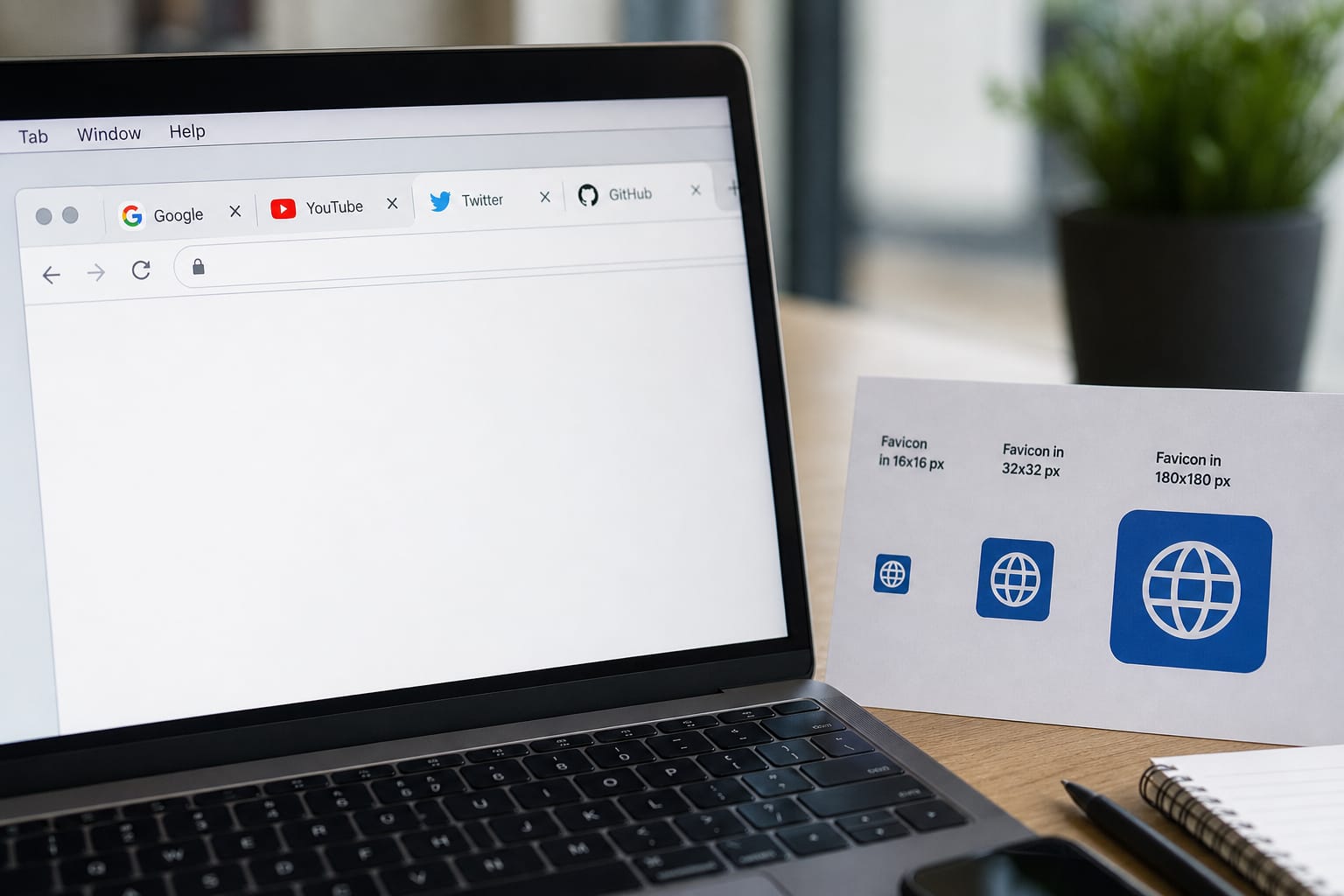
Showcase
What Favicon Pack is for
Turn any image into a ready-to-use favicon size pack (ZIP).
- Turn any image into a ready-to-use favicon size pack (ZIP).
- Quick browser utilities for daily computer work
- Browser processing keeps files on your device whenever the tool runs locally
How to use Favicon Pack
Turn a logo into every favicon size you need for browsers and home screens.
Upload a logo
Best results: square PNG/SVG at 512×512 or larger
Preview sizes
See each favicon size before download
Generate pack
Builds 16–512px icons for browsers and Android
Download ZIP
Get apple-touch and Android Chrome filenames ready
FAQs
Answers to the questions people ask most about privacy, quality, limits, and Favicon Pack.
Yes. Favicon Pack is free for everyday use. It runs in your browser with no account required for this tool.
For this tool, processing stays on your device in the browser. Files are not uploaded to Tools2Easy servers, so there is nothing for us to store or delete later. Close the tab when you are done if you want the in-memory preview cleared.
No install and no account for free tools. Open the page, add your file or text, process, then download or copy the result.
Most PDF and utility tools keep content fidelity unless you choose a compress or lossy convert option. Always preview the result before downloading when a preview is available.
Accepted types for Favicon Pack are listed in the upload area. Most browser tools work best under about 100 MB; very large files may fail or run slowly because your device does the work.
Yes, in modern mobile browsers (Chrome, Safari, Firefox, Edge). Large PDFs, images, or videos can be slower on phones because processing uses your device memory and CPU.
Browser tools depend on your device and file size — not a remote server queue. Close extra tabs, try a smaller file, or use a desktop browser if a large job stalls. If the tab crashes, the file was likely too heavy for available memory.
Yes. Results show in the workspace first. Download only when you are happy with the output. Use Compare on image/video results when you want to check against the original.
You need the page loaded once. After that, most utilities finish on your device. Offline reuse depends on whether your browser kept the page cached.
Yes for tools you run yourself (QR codes, memes, text helpers, etc.). You are responsible for trademarks, likeness rights, and how you use the result.
Free browser utilities on Tools2Easy do not add a Tools2Easy watermark to your output unless the tool is specifically an “add watermark” feature you control.
Add a clear source file, adjust the settings shown for this tool, preview the output, then download. If something looks off, use Adjust & reprocess or start over with a fresh file.