
AI Sound Effects
ProGenerate cinematic sound effects from a text prompt for videos and games.
Checking sign-in…
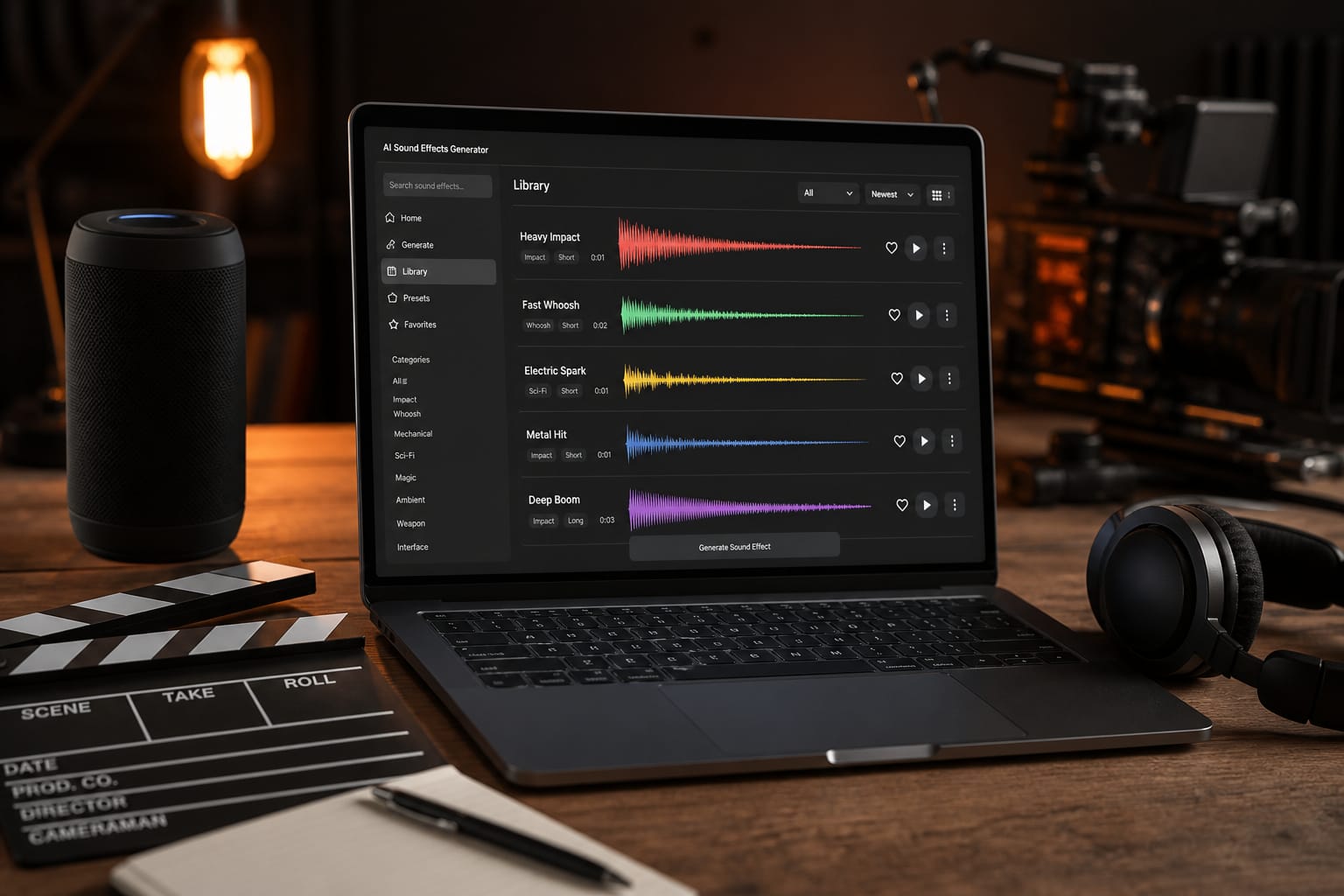
Showcase
What AI Sound Effects is for
Generate cinematic sound effects from a text prompt for videos and games.
- Generate cinematic sound effects from a text prompt for videos and games.
- Voice and sound tools for podcasts, video, and content
- Premium tool—signed-in processing when available; results appear in the workspace
How to use AI Sound Effects
Generate cinematic sound effects from a text prompt for videos and games.
Add audio
Upload a recording or sample when prompted
Configure
Pick voice or processing options
Process
Run the tool to generate or clean audio
Save
Download the audio result
FAQs
Answers to the questions people ask most about privacy, quality, limits, and AI Sound Effects.
AI Sound Effects is a premium tool. It runs with credits after you sign in — free browser tools on Tools2Easy do not require credits.
When premium features go live, processing may use our secure servers. Prefer free browser tools for maximum privacy if you need everything fully offline on-device.
Sign in is required for premium tools that use credits. No desktop install — everything runs in the browser.
When available, preview the result before you download. Quality controls will be shown in the workspace.
Accepted types for AI Sound Effects are listed in the upload area. Most browser tools work best under about 100 MB; very large files may fail or run slowly because your device does the work.
Yes, in modern mobile browsers (Chrome, Safari, Firefox, Edge). Large PDFs, images, or videos can be slower on phones because processing uses your device memory and CPU.
Premium tools depend on server capacity and your connection — larger files take longer.
Preview will appear in the workspace once this tool opens.
MP4 and WebM work well for extraction. Output is typically MP3 for broad compatibility. Check the upload hint for this tool.
Premium audio tools depend on upload size and server capacity once enabled.
Premium audio tools may process on our servers. Prefer free local extract tools for private files when available.
Follow the workspace instructions once the tool is connected; start with a clear source file.