Merge PDF Online Free: The Honest Guide (and What Nobody Tells You About Privacy)
Merging PDF files looks like the simplest task in the world: pick two files, press a button, get one file back. Then you actually try it with a real document — a signed contract, a scanned receipt, a 40-page report exported from three different systems — and the result is out of order, rotated sideways, or half the size you expected. This guide covers the practical version of how to merge PDF online free, including reordering before you merge, what to do with mixed page sizes and scanned pages, and the privacy question that most how-to posts skip entirely.
Why merging PDFs is harder than it looks
A PDF is not a document in the way a Word file is. It's a container that describes pages, each of which can have its own dimensions, rotation, font subsets, embedded images, and compression settings. When you combine PDF files, you're not appending text to text — you're stitching independent page trees together and hoping the result renders consistently in whatever reader opens it next.
That's why merges go wrong in predictable ways. Pages appear in the wrong order because the tool sorted by filename instead of respecting your drag order. A landscape page shows up rotated because its /Rotate entry conflicted with the page box. The output is enormous because every source file's embedded fonts and duplicate images were kept.
Most of these are avoidable, but only if you control the merge instead of letting a one-click widget decide for you. Two habits prevent the majority of bad merges: check the order before merging, and open the result before you send it anywhere.
How to merge PDFs in your browser
The workflow is the same regardless of which free browser tool you use. Open the merge tool, add your files, arrange them, merge, download. The differences that matter are in the details.
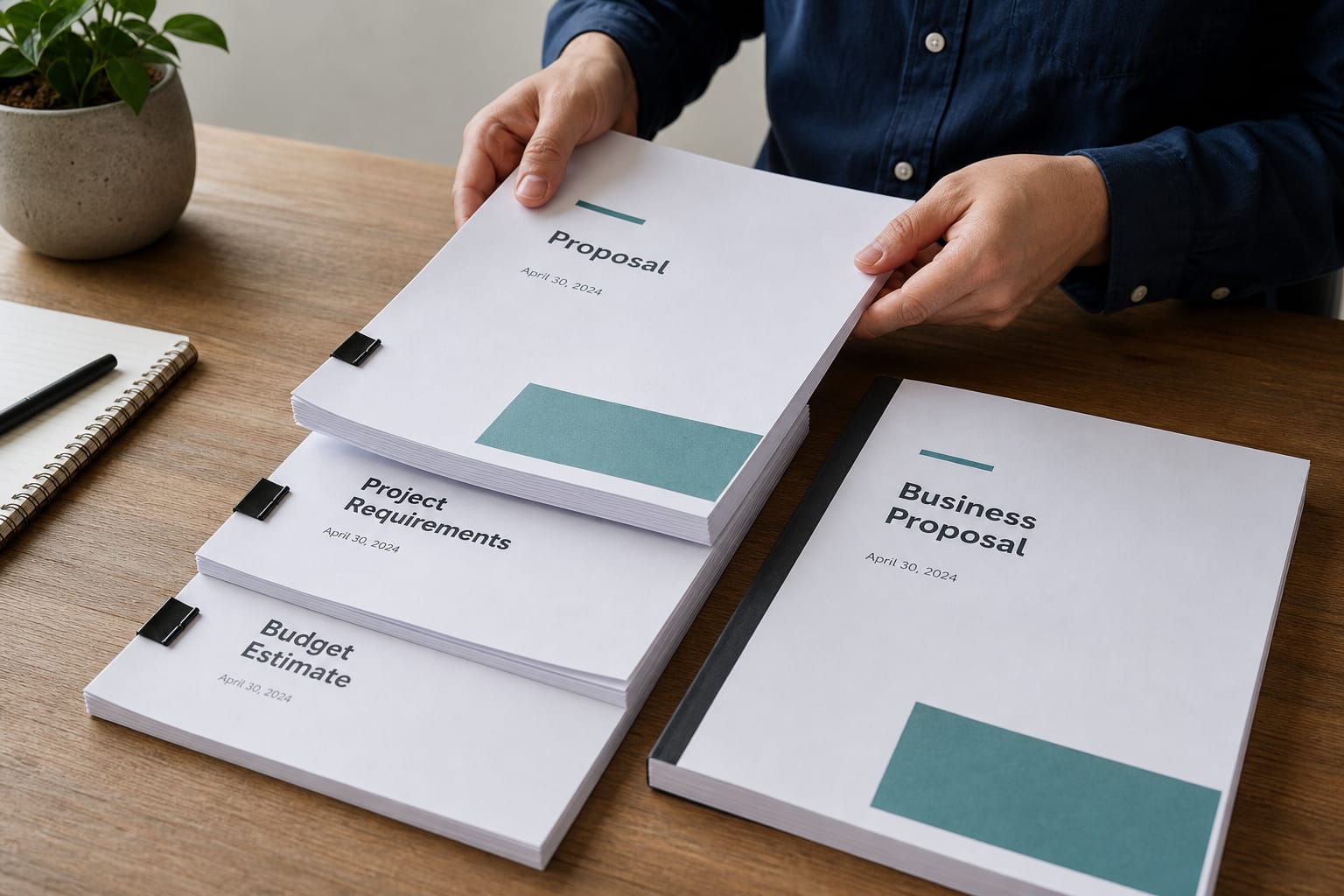
Start by collecting every file you need in one place. If the pages you want are spread across four PDFs and one of them also holds pages you don't want, split that file first, then merge the pieces. Merging first and deleting unwanted pages afterwards is slower and more error-prone.
Order matters more than most people expect. Rename your files with a numeric prefix (01_contract.pdf, 02_appendix.pdf, 03_signature.pdf) before adding them, because many tools fall back to alphabetical sorting when you don't drag items manually. Then drag anyway, and read the on-screen page list top to bottom before you press merge. That thirty seconds prevents most bad merges.
Free browser tools need no account and no installation — open a page, do the work, close the tab. There's no queue to wait in either, because a local pdf merger has no server to sit on.
Once merged, open the result and check four things: the first page, the last page, the point where two documents meet, and the total page count. If those are right, the merge is almost certainly correct.
Merging PDFs without uploading them anywhere
There are two processing models on the web, and the difference is not cosmetic.
The upload model sends your file to a server, processes it there, and returns a download link. Good services in this category delete the file after a short window — often an hour — and say so in their privacy policy. The file still left your computer. It travelled over the network, landed on a disk you don't control, and existed in that environment long enough to be processed, cached, logged, or backed up, depending on how the service is built. For a restaurant menu that's irrelevant. For a signed lease, a medical referral, a payslip, or a client's identity document, it's a decision worth making consciously rather than by default.
The local model keeps the file on your machine. Browser-based tools that run the merge in JavaScript never transmit the document: it's read into your browser's memory, the pages are combined locally, and the download is generated on your own device. You can verify it yourself — open your browser's developer tools, switch to the network tab, and merge a file. If no request carries the document body, nothing was uploaded.
Tools2Easy's PDF merge runs in the browser, which means the merge pdf without upload option isn't a paid tier or a setting you have to find. It's how the tool works. That said, be honest about the trade-off: local processing depends on your device. Very large files or low-memory machines will be slower than a server with more resources, and a browser tab that crashes mid-merge loses the work. For everyday documents — contracts, forms, reports, scanned batches — local processing is faster to start and keeps the file where it belongs.
A practical rule: if you'd hesitate to email the file to a stranger, don't hand it to a server you know nothing about. Use a local tool, or one that states its deletion window plainly.
Frequently asked questions
Are my files kept after I merge them?
With a browser-based tool, nothing is kept because nothing was sent. The document is read into your browser's memory, merged on your device, and discarded when you close the tab. Upload-based services are different: most keep the file for a short window — commonly one hour — before deleting it, and some keep anonymous usage logs longer. Check the privacy policy before uploading anything sensitive, and prefer a local tool when the document is confidential.
Can I merge PDFs without uploading them to a server?
Yes. Tools that run the merge in your browser never transmit the file. You can confirm it with your browser's developer tools: open the network tab, start a merge, and watch for requests. If no request body contains the document, it stayed local. Tools2Easy's PDF merge works this way by default.
What if my merged PDF has pages in the wrong order, or looks wrong?
Almost always an ordering problem, not corruption. Go back to the source files and rename them with numeric prefixes so sorting matches your intended sequence, then re-add and drag them into position. If individual pages are rotated or the wrong size, split the offending file, fix those pages, and merge again. If the result is unexpectedly large, the sources likely contain duplicate embedded images and fonts — compressing the output usually brings it down. Never send a merged file without opening it and checking the first page, the last page, and the join points.
Can I combine PDF files with different page sizes or scanned pages?
Yes, and mixed page sizes are usually fine — each page keeps its own dimensions, so a letter-size cover followed by A4 body pages displays correctly in any standard reader. Scanned pages are different: they're images, so a scan at 600 DPI will bloat the merged file and one at 72 DPI will look soft in print. Check the scan resolution before merging a large batch. Scans also carry no selectable text, so if the merged document must be searchable, run OCR per file before merging — it's easier to spot a bad page in a 5-page source than in a 200-page result.
Try it now
Open the merge tool, drop in your PDFs, drag them into the order you want, and merge. No account, no install, nothing uploaded. Download the result, open it, check the page count, and you're done.
If the merge revealed problems — a file that needs splitting, or a bloated result that needs compressing — the related tools are a click away, and they run the same way.
Merge your PDFs in the browser — free, no account, no upload. Open the PDF merge tool and combine your files in seconds.
Use the free tool