PDF to Word Without Losing Formatting: What Actually Works
Search for a way to convert PDF to Word free and the same thing happens: the file opens, the words are there, and the layout is subtly wrong. Headings become plain text, tables collapse, columns interleave. This is not a flaw in one pdf to word converter — it is what happens when software reverses a format that was never meant to be reversed. Here is what a PDF contains, what a converter can recover, and the short pass that turns a messy result into an editable Word document.
Why PDF to Word often breaks the layout
PDF is a fixed-layout print format. A page is a list of drawing instructions: place this glyph at these coordinates, fill this rectangle, draw this line. It describes where ink goes, not what the ink means. There is no paragraph, heading level, table, or column anywhere in the file. A three-column newsletter and a single-column report are both just glyphs with positions.
A Word document is the opposite. It is structured: paragraphs belong to styles, tables have rows and cells, headings carry an outline level, and text reflows when the page size changes. Converting PDF to Word means inventing that structure from coordinates alone — grouping text that shares a baseline, guessing where paragraphs end, using white-space gutters to infer columns, hoping ruled lines are table borders. All inference, and inference fails at the edges.
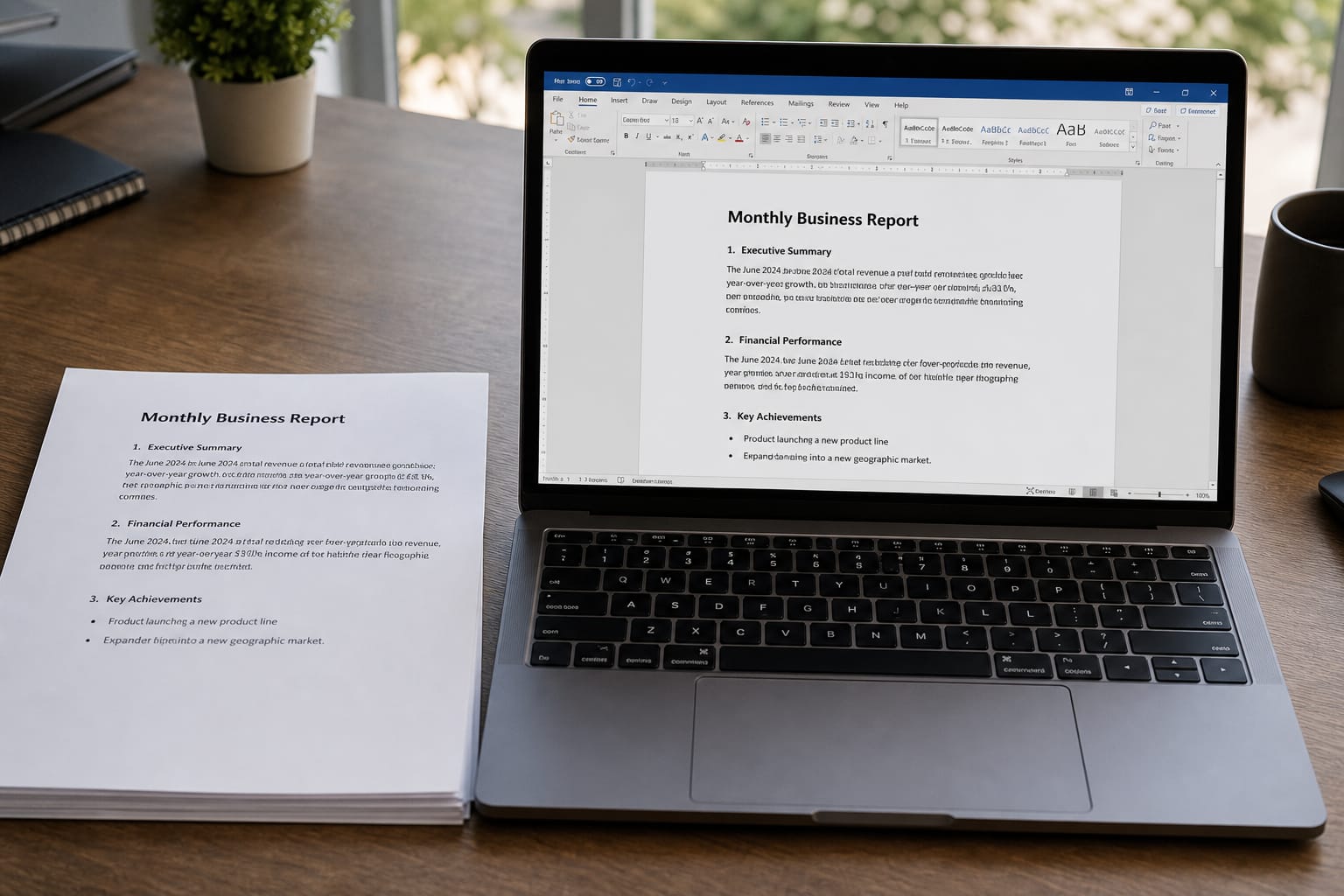
That is why the failures are so consistent. Character extraction is usually near-perfect, because the PDF does store the glyphs and fonts. The loss is structural: headings flattened into body text because both used a similar size, tables scattered into loose text, multi-column pages read across instead of down each column, and headers and footers pasted into the body at every page break.
Judge a conversion on its words, not its layout: a tool returning perfect text with imperfect structure is doing everything the format allows.
How to convert and what to check
Check the source first: if you have the original in any editable format, use it and skip the conversion. Otherwise test for a text layer: try to select a sentence with the mouse. If it highlights, every character will survive conversion. If nothing highlights, it is a scanned image and you need OCR.
Then check four things in this order. Headings: flattening is the most common loss, so reapply heading styles. Tables: verify row and column counts, then rebuild rather than nudging stray cells. Reading order: if a two-column page came out interleaved, cut those blocks and re-paste them in order. Page furniture: delete the headers and footers absorbed into the body, then re-add them properly.
Expect one to three minutes per page containing a table or multi-column layout, and almost nothing on plain prose. If it is dense with tables and sidebars, retyping what you need may be faster.
One thing to settle first: where the tool runs. Many online converters upload your file to a server and keep it for an unspecified period, which matters for a contract or a payslip. Tools that process locally never upload the file — no install, no account, and the document stays on your machine. Check the tool before you use it: the PDF to Word and PDF OCR tools work this way, while Word to PDF uploads for server-side conversion and requires a sign-in.
Scanned PDFs are a different problem
A scanned PDF has no text layer: it is a photograph of a page inside a PDF container. There are no characters to extract, so a standard converter returns an empty document or a single image.
Making a scan searchable and editable requires OCR — optical character recognition — which reads pixels and matches letterforms. That is pattern matching, not lookup, so accuracy depends on scan quality: resolution, contrast, skew, and photocopy noise. A crisp 300 DPI scan of printed text can come out near-perfect; a tilted phone photo of a faint fax needs every line checked.
The sequence for a scan is OCR first, then convert the resulting text, then proofread. Proofread properly, not skim. OCR confuses characters that share shapes — 1, l and I; 0 and O; rn and m; 5 and S — and those errors hide inside words. Numbers deserve the most care, because a wrong digit changes a figure, not just a spelling.
If a scan is poor and the document matters, rescanning at higher resolution beats correcting dozens of OCR errors later.
Worth saying plainly: sometimes the right answer to convert PDF to Word is not to convert. If you only need to read the document, copy a paragraph, or quote a few lines, select the text in the PDF and copy it. Conversion is for editing, restructuring, and reformatting. Running a file through a converter to read one page is pure overhead, and the most common unnecessary step people take.
Frequently asked questions
Can any pdf to word converter keep formatting exactly?
No, and it is not about tool quality. PDF stores glyph positions, not structure, so paragraphs, headings, and tables do not exist in the file as recoverable objects. A converter reconstructs them by inference, which is why the text comes out perfect while tables, columns, and heading levels need a manual fix.
How do I convert PDF to Word free without uploading my document?
Use a browser-local converter. The file is read and processed inside your own browser tab, so nothing is sent to a server and nothing is stored. No install, no account, and the document never leaves your machine, which matters for contracts, payslips, and anything with personal data. That applies to the PDF to Word and PDF OCR tools specifically — Word to PDF is server-processed and needs a sign-in.
Why does my converted file come out empty or as one image?
Your PDF is a scan. It holds a picture of a page instead of a text layer, so there are no characters to extract. Run OCR on it first to recognise the text, then convert that result, then proofread carefully for mix-ups on digits and similar-looking letters.
Should I convert a PDF just to read it or copy a few lines?
No. If you only need to read the document or grab a paragraph, select the text in the PDF viewer and copy it. Convert when you need to edit, restructure, or reuse the content. Converting to read one page adds a step and still hands you a document to clean up.
Try it now
If your PDF has a text layer and you need an editable Word document, drop it into the pdf to word tool. It runs in your browser — no upload, no install, no account — so a contract never leaves your machine. Going the other way, the word to pdf tool turns a finished document into a fixed-layout file to send. If your scan returns only an image, run the pdf ocr tool first to build the text layer, then convert. Either route, the fix-up pass is short: reapply heading styles, rebuild tables, delete stray headers, check the numbers.
Convert your PDF to an editable Word document in your browser — free, no upload, no account, no install.
Use the free tool